FSCH POSTS
Hi, I'm Haifisch, and these are some posts.
Unlocking & rooting the Lenovo TB361FU
by haifischHowdy! Quick writeup on getting root on a brand new Lenovo TB361FU tablet (the Wi-Fi cava_row_wifi build, MediaTek MT8755 / Dimensity 6300-class, Android 13 GKI). Nothing here is groundbreaking but figured I’d practice documenting my experience here…
If you’ve unlocked a Lenovo/Xiaoxin tablet before, the shape is familiar - Lenovo gates fastboot oem unlock behind a device-specific, serial-bound signed sn.img you request from them. No sn.img, no unlock. The bootloader literally checks a header, an RSA signature, and that the serial baked into the image matches your unit before it’ll flip the lock.
Word of warning
Back up anything you care about first. Everything below is stuff I did to my own tablet; if you brick yours, that’s on you. <3
Prerequisites
adb+fastboot(platform-tools).- The Magisk app.
- Your stock firmware (for the
init_boot.imgyou’ll patch, and as a rollback safety net).- This can be easily found by downloading
Software Fixfrom Lenovo and downloading the firmware through their rescue software. - The firmware bundle is downloaded and unarchived under
C:\ProgramData\RSA\Download\RomFilesand will be along the lines ofTB361FU_ROW_OPEN_USER_M1317.3_W_ZUI_17.5.10.266_ST_260606or similar…
- This can be easily found by downloading
- A Lenovo account (the unlock portal requires login).
Step 1 - enable unlocking + grab your identifiers
On the tablet: Developer Options -> turn on OEM unlocking and USB debugging. Then boot to the bootloader and confirm the toggle actually took:
fastboot flashing get_unlock_ability
(bootloader) unlock_ability is true
Now pull getvar all and note three things - your serialno and both halves of the Bootloader_SN:
fastboot getvar all
...
(bootloader) 	Bootloader_SN_Part1: AAAAAAAAAAAAAAAAAAAAAAAAAAAAAAAA
(bootloader) 	Bootloader_SN_Part2: BBBBBBBBBBBBBBBBBBBBBBBBBBBBBBBB
(bootloader) 	serialno: XXXXXXXX
(bootloader) 	current-slot: b
...
Take note of all of these serial number entries and lastly, take note of your current-slot - you’ll need it later at flash time.
Step 2 - the unlock request
Head to zui.com/iunlock and log in, click the highlighted link in the screenshot below to use your Lenovo account.
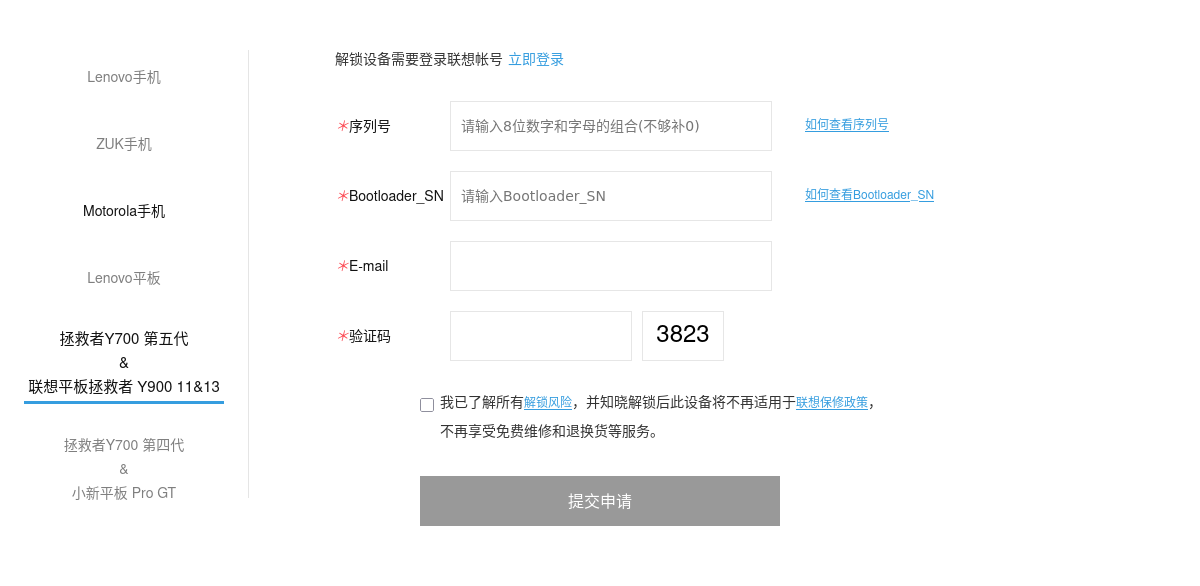
The left rail is a list of device families… and this is the trap: a TB361FU is a Lenovo tablet, so you’d assume you should click on “Lenovo平板” (Lenovo Tablet). That page did accept my device XXXXXXXX format serial but the resulting sn.img was rejected by the bootloader.
Sending 'unlock' (5 KB)                            OKAY [  0.001s]
Writing 'unlock'                                   FAILED (remote: 'Invalid unlock image header
')
fastboot: error: Command failed
The one that worked was the “拯救者Y700 第五代 & 联想平板拯救者 Y900 11&13” entry (Legion Y700 Gen 5 & Legion Y900 tablet). No idea why the TB361FU lives under the Legion tablet page, but it does. If your serial bounces on the tablet page, try that one.
The form wants:
- 序列号 (Serial number) - your 8-char
serialno, e.g.XXXXXXXX. Note the hint: 8 digits/letters, don’t pad with zeros. - Bootloader_SN - paste Part1 and Part2 concatenated together, no space, no separator:
Bootloader_SN
Bootloader_SN_Part1: AAAAAAAAAAAAAAAAAAAAAAAAAAAAAAAA
Bootloader_SN_Part2: BBBBBBBBBBBBBBBBBBBBBBBBBBBBBBBB
       			  -> AAAAAAAAAAAAAAAAAAAAAAAAAAAAAAAABBBBBBBBBBBBBBBBBBBBBBBBBBBBBBBB
- E-mail + 验证码 (captcha), tick the warranty-void box, and 提交申请 (submit).
You get an sn.img back for your specific device. It’s a tiny (~5 KB) signed boot-style image with your serial and a Lenovo cert chain inside - it only works on your tablet.
Step 3 - flash the unlock image + unlock
fastboot flash unlock sn.img
fastboot oem unlock
If
flash unlockthrowsInvalid unlock image header, your download got mangled - I hit this exact thing and a clean re-download of the sn.img fixed it immediately. The header check is stage one, so a truncated file dies right there.
oem unlock prints unlock success, wipes, and reboots. Confirm with fastboot getvar unlocked -> yes (and secure: no).
Step 4 - root via Magisk on init_boot
This is a GKI device, so the ramdisk lives in init_boot, not boot. Copy the stock init_boot.img to the tablet, open the Magisk app -> Install -> Select and Patch a File -> pick init_boot.img. It spits out a magisk_patched-*.img in Downloads. Pull it back to your PC.
Now the last gotcha. The obvious command fails:
fastboot flash init_boot magisk_patched-xxxxx_xxxxx.img
FAILED (remote: 'partition does not exist')
This bootloader doesn’t expose the unslotted init_boot alias (it’s not even in getvar all). You have to name the explicit slot - the one from current-slot back in Step 1. Mine was b:
fastboot flash init_boot_b magisk_patched-30700_xxxxx.img
fastboot reboot
You’ll get a ~5 second orange-state “can’t verify” warning on boot - normal for any unlocked device, it boots through on its own. Magisk keeps dm-verity intact (KEEPVERITY=true) and only swaps the ramdisk, so there’s no need to touch vbmeta for a plain root.
A note on A/B slots: this device has two slots and we only patched the active one (
b). That’s deliberate - it leaves the other slot on stockinit_bootas a clean fallback, so a bad patch can’t brick both sides. The tradeoff: if a seamless OTA ever flips you to the other slot, you’ll boot unrooted stock and just re-patch that slot. You can flash both (init_boot_aandinit_boot_b) to keep root across a slot switch, but only do it knowingly - you’re giving up the fallback. For a first root, stick to the active slot.
Done
TB361FU:/ $ su
TB361FU:/ # whoami
root
That’s it - rooted stock. If a flash ever goes sideways, stock init_boot_b from your firmware puts you right back:
fastboot flash init_boot_b image/init_boot.img
Enjoy your rooted tablet :) Until next time!
~ haifisch
Tags: lenovo tb361fu android root mtk